In this tutorial, we'll build a game loading screen that tracks multiple assets loading simultaneously. By the end, you'll know how to create progress bars, run multiple tasks in parallel, customize the display columns, and style everything to match your application.
What We're Building
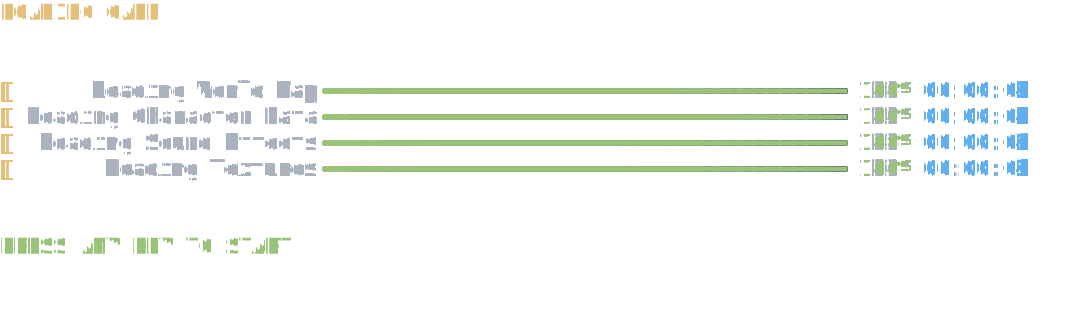
Here's the loading screen we're creating:
Prerequisites
- .NET 6.0 or later
- Basic C# knowledge
- Completion of the Getting Started tutorial
- 1
Load a Single Asset
Let's start with the simplest case - a single progress bar loading one asset. The
Progress()method creates animated bars that fill as work completes:AnsiConsole.Progress() .Start(ctx => { var task = ctx.AddTask("Loading World Map"); while (!ctx.IsFinished) { task.Increment(1.5); Thread.Sleep(50); } }); AnsiConsole.MarkupLine("[green]Ready![/]");Run the code:
dotnet runA progress bar appears for "Loading World Map" and fills from 0% to 100%, then "Ready!" appears.
The
AddTask()method creates a trackable task, andIncrement()advances the progress. Spectre.Console handles all the animation and redrawing automatically.Your first progress bar is working.
- 2
Load Multiple Assets
Games load many assets at once. Let's add parallel progress bars with different sizes - the world map is larger than sound effects:
// World map is large (200 units) var worldMap = ctx.AddTask("Loading World Map", maxValue: 200); // Character data uses default (100 units) var character = ctx.AddTask("Loading Character Data"); // Sound effects are small (50 units) var sounds = ctx.AddTask("Loading Sound Effects", maxValue: 50); var random = new Random(42); worldMap.Increment(random.NextDouble() * 3); character.Increment(random.NextDouble() * 1.5); sounds.Increment(random.NextDouble() * 1.5);Run it:
dotnet runThree progress bars appear. Sound effects finish quickly (only 50 units), while the world map takes longer (200 units).
The
maxValueparameter sets each task's total size - sound effects at 50 units complete faster than the 200-unit world map even with similar increment rates.Now we're tracking multiple operations with realistic sizes.
- 3
Customize the Display
Loading screens typically show more than just a bar. Let's add a spinner animation and elapsed time to make our display more informative:
.Columns( new SpinnerColumn(), new TaskDescriptionColumn(), new ProgressBarColumn(), new PercentageColumn(), new ElapsedTimeColumn())Run it:
dotnet runEach row now shows a spinning animation on the left and elapsed time on the right. The percentage column shows exact completion.
The
.Columns()method lets you pick exactly what to display.SpinnerColumnadds animation,ElapsedTimeColumnshows duration, andPercentageColumnshows completion percentage.Your loading screen is getting more informative.
- 4
Style the Loading Screen
Let's add some color to make completed progress stand out. We'll use green for the filled portion and gray for the remaining:
new ProgressBarColumn { CompletedStyle = new Style(Color.Green), FinishedStyle = new Style(Color.Lime), RemainingStyle = new Style(Color.Grey) },Run it:
dotnet runThe progress bars now show green for completed work and gray for remaining. When a task finishes, the entire bar turns lime green.
CompletedStylecolors the filled portion,RemainingStylecolors the empty portion, andFinishedStylecolors the bar when the task reaches 100%.The loading screen has some visual polish now.
- 5
Start Tasks Programmatically
Some assets depend on others - textures can't load until the world map is partially ready. Let's add textures that wait until the world map reaches 25%:
// Textures won't start until we call StartTask() var textures = ctx.AddTask("Loading Textures", autoStart: false); // Start textures once world map reaches 25% if (worldMap.Percentage >= 25 &&! textures.IsStarted) { textures.StartTask(); } if (textures.IsStarted) { textures.Increment(random.NextDouble() * 2); }Run it:
dotnet runFour progress bars appear. World map, character, and sounds start immediately, but textures stay at 0% until the world map hits 25%. Then textures begin loading.
Setting
autoStart: falsecreates a task that waits. CheckIsStartedto avoid callingStartTask()multiple times, then trigger it when your condition is met.Dependent loading sequences are now under control.
- 6
Complete Loading Screen
Let's combine everything into a polished loading screen with all five assets, custom styling, and timing information:
AnsiConsole.MarkupLine("[bold yellow]LOADING GAME[/]");
AnsiConsole.WriteLine();

AnsiConsole.Progress()
    .Columns(
        new SpinnerColumn(),
        new TaskDescriptionColumn(),
        new ProgressBarColumn
        {
            CompletedStyle = new Style(Color.Green),
            FinishedStyle = new Style(Color.Lime),
            RemainingStyle = new Style(Color.Grey)
        },
        new PercentageColumn(),
        new ElapsedTimeColumn())
    .Start(ctx =>
    {
        var worldMap = ctx.AddTask("Loading World Map", maxValue: 200);
        var character = ctx.AddTask("Loading Character Data");
        var sounds = ctx.AddTask("Loading Sound Effects", maxValue: 50);
        // Textures won't start until we call StartTask()
        var textures = ctx.AddTask("Loading Textures", autoStart: false);

        var random = new Random(42);
        while (!ctx.IsFinished)
        {
            worldMap.Increment(random.NextDouble() * 3);
            character.Increment(random.NextDouble() * 1.5);
            sounds.Increment(random.NextDouble() * 1.5);

            // Start textures once world map reaches 25%
            if (worldMap.Percentage >= 25 && !textures.IsStarted)
            {
                textures.StartTask();
            }

            if (textures.IsStarted)
            {
                textures.Increment(random.NextDouble() * 2);
            }

            Thread.Sleep(50);
        }
    });

AnsiConsole.WriteLine();
AnsiConsole.MarkupLine("[bold lime]PRESS ANY KEY TO START[/]");
Run the complete application:
dotnet run"LOADING GAME" appears in bold yellow, followed by five styled progress bars with spinners and elapsed time. When everything finishes, "PRESS ANY KEY TO START" appears in lime.
The full combination: custom columns for information, styled colors for visual appeal, and multiple tasks showing parallel work.
A complete game loading screen experience.
Congratulations!
You've built a game loading screen that demonstrates all the core progress features. Your application tracks multiple assets loading in parallel, shows elapsed time and percentages, and uses custom colors to make the display visually appealing.
Add progress bars to file downloads, data processing, build pipelines, deployment scripts - anywhere you have long-running operations that users are waiting for.
Next Steps
- Progress Display - Explore indeterminate progress, dynamic tasks, and async patterns
- Show Progress Bars - Quick recipes for common progress scenarios
- Status Display - Simpler alternative when you don't have measurable progress