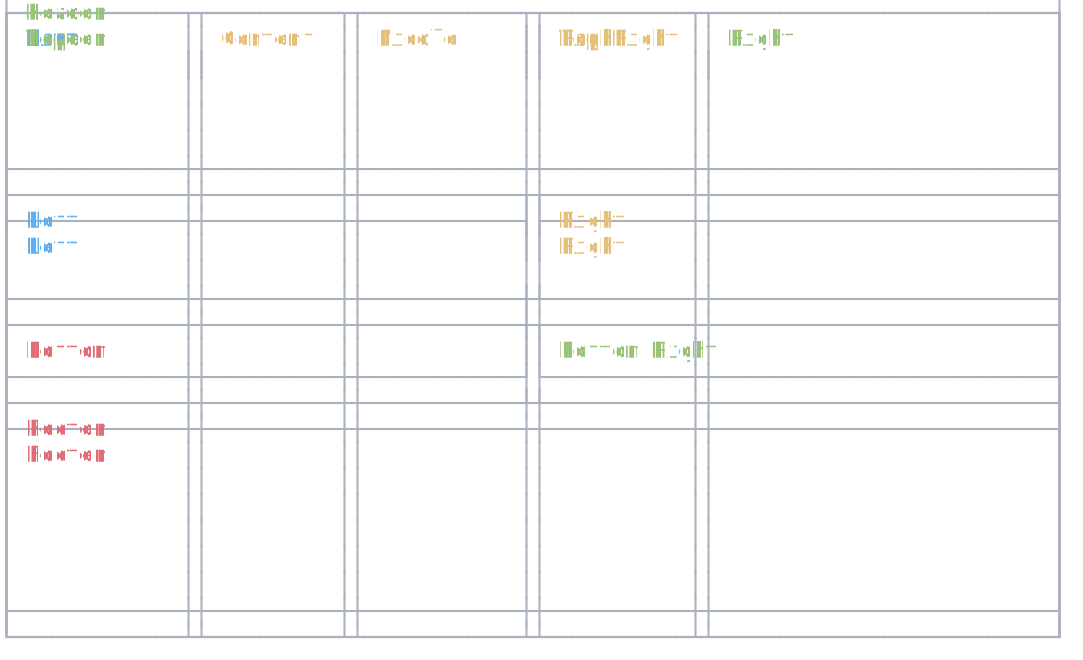
The Layout widget divides console space into sections that can be split horizontally or vertically, enabling complex multi-region interfaces.
When to Use
Use Layout when you need to divide the console into distinct regions with precise control over sizing. Common scenarios:
- Dashboard interfaces: Headers, sidebars, content areas, and footers with fixed or proportional sizing
- Multi-pane views: Split screen layouts like file managers, IDE-style interfaces, or monitoring dashboards
- Responsive layouts: Sections that adapt proportionally to available space using ratios
For simple side-by-side content without nested regions, use Columns instead. For tabular data with borders, use Grid.
Basic Usage
Split a layout into columns or rows, then update each section by name.
var layout = new Layout("Root")
    .SplitColumns(
        new Layout("Left"),
        new Layout("Right"));

layout["Left"].Update(
    new Panel("Left Panel")
        .BorderColor(Color.Green));

layout["Right"].Update(
    new Panel("Right Panel")
        .BorderColor(Color.Blue));

AnsiConsole.Write(layout);
Navigation and Updates
Accessing Sections by Name
Use named sections to access and update specific regions, making your layout easier to manage and modify.
var layout = new Layout("Root")
    .SplitColumns(
        new Layout("Left"),
        new Layout("Center"),
        new Layout("Right"));

// Update sections individually by name
layout["Left"].Update(new Markup("[blue]Navigation[/]"));
layout["Center"].Update(new Markup("[green]Main Content[/]"));
layout["Right"].Update(new Markup("[yellow]Sidebar[/]"));

AnsiConsole.Write(layout);
Splitting into Rows
Use SplitRows() to create vertical sections like headers, content areas, and footers.
var layout = new Layout("Root")
    .SplitRows(
        new Layout("Top"),
        new Layout("Bottom"));

layout["Top"].Update(
    new Panel("Header Section")
        .Header("Top")
        .BorderColor(Color.Yellow));

layout["Bottom"].Update(
    new Panel("Content Section")
        .Header("Bottom")
        .BorderColor(Color.Cyan1));

AnsiConsole.Write(layout);
Size Control
Fixed Sizes
Use Size() to set exact widths or heights for sections that need consistent dimensions, like sidebars or headers.
var layout = new Layout("Root")
    .SplitColumns(
        new Layout("Sidebar").Size(20),
        new Layout("Content"));

layout["Sidebar"].Update(
    new Panel("Fixed\n20 chars\nwide")
        .BorderColor(Color.Purple));

layout["Content"].Update(
    new Panel("This section takes remaining space")
        .BorderColor(Color.Green));

AnsiConsole.Write(layout);
Proportional Sizing with Ratios
Use Ratio() to distribute space proportionally when sections should scale relative to each other.
var layout = new Layout("Root")
    .SplitColumns(
        new Layout("Left").Ratio(1),
        new Layout("Center").Ratio(2),
        new Layout("Right").Ratio(1));

layout["Left"].Update(new Panel("1/4 width").BorderColor(Color.Blue));
layout["Center"].Update(new Panel("2/4 width (half)").BorderColor(Color.Green));
layout["Right"].Update(new Panel("1/4 width").BorderColor(Color.Yellow));

AnsiConsole.Write(layout);
Minimum Sizes
Use MinimumSize() to ensure sections remain readable even when space is constrained.
var layout = new Layout("Root")
    .SplitColumns(
        new Layout("Navigation").MinimumSize(15),
        new Layout("Content"));

layout["Navigation"].Update(
    new Panel("Navigation\nMin 15 chars")
        .BorderColor(Color.Cyan1));

layout["Content"].Update(
    new Panel("Content area that flexes")
        .BorderColor(Color.Green));

AnsiConsole.Write(layout);
Advanced Usage
Nested Layouts
Create complex multi-level layouts by splitting sections recursively to build sophisticated interfaces.
var layout = new Layout("Root")
    .SplitRows(
        new Layout("Header").Size(3),
        new Layout("Body"),
        new Layout("Footer").Size(3));

layout["Header"].Update(
    new Panel("[yellow]Application Header[/]")
        .BorderColor(Color.Yellow));

layout["Body"].SplitColumns(
    new Layout("Sidebar").Size(20),
    new Layout("Content"));

layout["Sidebar"].Update(
    new Panel("[blue]Menu[/]\n• Home\n• Settings\n• About")
        .BorderColor(Color.Blue));

layout["Content"].Update(
    new Panel("[green]Main Content Area[/]")
        .BorderColor(Color.Green));

layout["Footer"].Update(
    new Panel("[grey]Status Bar[/]")
        .BorderColor(Color.Grey));

AnsiConsole.Write(layout);
Dashboard Layout
Combine multiple layout techniques to create a complete dashboard with headers, sidebars, content areas, and status bars.
var layout = new Layout("Root")
    .SplitRows(
        new Layout("Header").Size(3),
        new Layout("Main"),
        new Layout("Footer").Size(3));

layout["Header"].Update(
    new Panel("[bold yellow]System Dashboard[/]")
        .BorderColor(Color.Yellow));

layout["Main"].SplitColumns(
    new Layout("Left").Ratio(1),
    new Layout("Right").Ratio(2));

layout["Left"].SplitRows(
    new Layout("Metrics"),
    new Layout("Logs"));

layout["Metrics"].Update(
    new Panel("[green]CPU: 45%\nRAM: 62%\nDisk: 78%[/]")
        .Header("System Metrics")
        .BorderColor(Color.Green));

layout["Logs"].Update(
    new Panel("[dim]12:03 Process started\n12:05 Connected\n12:07 Ready[/]")
        .Header("Recent Logs")
        .BorderColor(Color.Blue));

layout["Right"].Update(
    new Panel("[white]Main application content area\nDisplays real-time data and visualizations[/]")
        .Header("Content")
        .BorderColor(Color.Cyan1));

layout["Footer"].Update(
    new Panel("[dim]Connected | Uptime: 2h 34m | Last Update: 12:07:45[/]")
        .BorderColor(Color.Grey));

AnsiConsole.Write(layout);
Three-Column Layout
Create a classic application layout with navigation, main content, and sidebar regions containing different widget types.
var layout = new Layout("Root")
    .SplitColumns(
        new Layout("Navigation").Size(18),
        new Layout("Main"),
        new Layout("Sidebar").Size(22));

layout["Navigation"].Update(
    new Panel(new Markup(
        "[blue]Menu[/]\n" +
        "├─ Dashboard\n" +
        "├─ Reports\n" +
        "└─ Settings"))
        .BorderColor(Color.Blue));

var table = new Table()
    .BorderColor(Color.Green)
    .AddColumn("Item")
    .AddColumn("Value")
    .AddRow("Orders", "1,234")
    .AddRow("Revenue", "$45,678");

layout["Main"].Update(
    new Panel(table)
        .Header("Statistics")
        .BorderColor(Color.Green));

layout["Sidebar"].Update(
    new Panel("[yellow]Quick Actions[/]\n• New Report\n• Export Data\n• Refresh")
        .BorderColor(Color.Yellow));

AnsiConsole.Write(layout);
Dynamic Visibility
Control section visibility at runtime to show or hide regions based on application state.
var layout = new Layout("Root")
    .SplitColumns(
        new Layout("Left"),
        new Layout("Middle"),
        new Layout("Right"));

layout["Left"].Update(new Panel("Always visible").BorderColor(Color.Green));
layout["Middle"].Update(new Panel("Hidden section").BorderColor(Color.Red));
layout["Right"].Update(new Panel("Also visible").BorderColor(Color.Blue));

// Hide the middle section
layout["Middle"].IsVisible = false;

AnsiConsole.Write(layout);
Dynamic Content Updates
Update section content in response to events or state changes for interactive interfaces.
var layout = new Layout("Root")
    .SplitColumns(
        new Layout("Status"),
        new Layout("Content"));

// Initial state
layout["Status"].Update(
    new Panel("[yellow]Loading...[/]")
        .BorderColor(Color.Yellow));

layout["Content"].Update(
    new Panel("Waiting for data...")
        .BorderColor(Color.Grey));

// Simulate update (in real use, you'd re-render)
layout["Status"].Update(
    new Panel("[green]Ready[/]")
        .BorderColor(Color.Green));

layout["Content"].Update(
    new Panel("Data loaded successfully!")
        .BorderColor(Color.Green));

AnsiConsole.Write(layout);
See Also
- Organize Layout - Layout patterns and recipes
- Update Content Live - Real-time layout updates
- Columns Widget - Simple side-by-side content
- Grid Widget - Tabular layouts with borders
- Live Display - Updating layouts in real-time
API Reference
Represents a renderable to divide a fixed height into rows or columns.
Constructors
Layout(string name)Initializes a new instance of the class.
Parameters:
name (string)Layout(IRenderable renderable)Initializes a new instance of the class.
Parameters:
renderable (IRenderable)Layout(string name, IRenderable renderable)Initializes a new instance of the class.
Parameters:
name (string)renderable (IRenderable)Properties
IsVisible
: boolGets or sets a value indicating whether or not the layout should be visible or not.
Item
: LayoutMinimumSize
: intGets or sets the minimum width.
Name
: stringGets or sets the name.
Ratio
: intGets or sets the ratio.
Size
: Nullable<int>Gets or sets the width.
Methods
Layout GetLayout(string name)Gets a child layout by it's name.
Parameters:
name (string)Returns:
The specified child .
Layout SplitColumns(Layout[] children)Splits the layout into columns.
Parameters:
children (Layout[])Returns:
The same instance so that multiple calls can be chained.
Layout SplitRows(Layout[] children)Splits the layout into rows.
Parameters:
children (Layout[])Returns:
The same instance so that multiple calls can be chained.
Layout Update(IRenderable renderable)Updates the containing .
Parameters:
renderable (IRenderable)Returns:
The same instance so that multiple calls can be chained.
Extension Methods
IEnumerable<Segment> GetSegments(IAnsiConsole console)Gets the segments for a renderable using the specified console.
Parameters:
console (IAnsiConsole)Returns:
An enumerable containing segments representing the specified .
Layout MinimumSize(int size)Sets the minimum width of the layout.
Parameters:
size (int)Returns:
The same instance so that multiple calls can be chained.
Layout Ratio(int ratio)Sets the ratio of the layout.
Parameters:
ratio (int)Returns:
The same instance so that multiple calls can be chained.
Layout Size(int size)Sets the size of the layout.
Parameters:
size (int)Returns:
The same instance so that multiple calls can be chained.